
Quick summary
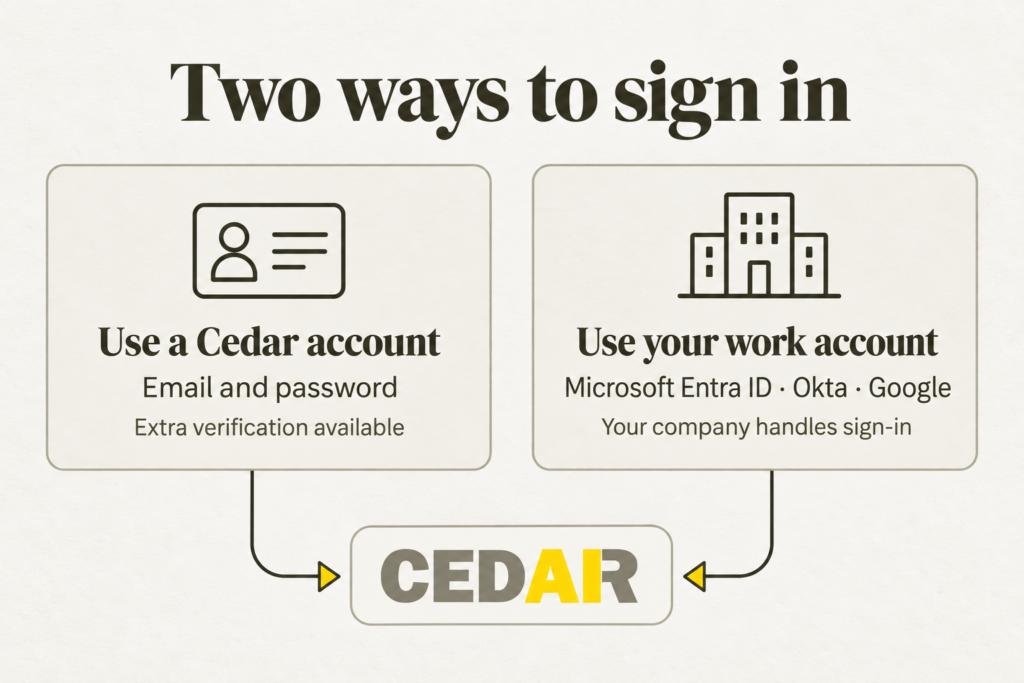
- Sign in to ARMS™ with a Cedar AI account (email address and password), or through Microsoft Entra ID, Okta, or Google.
- Add an extra check at sign-in with multifactor authentication, through Cedar AI or your company’s existing sign-in system.
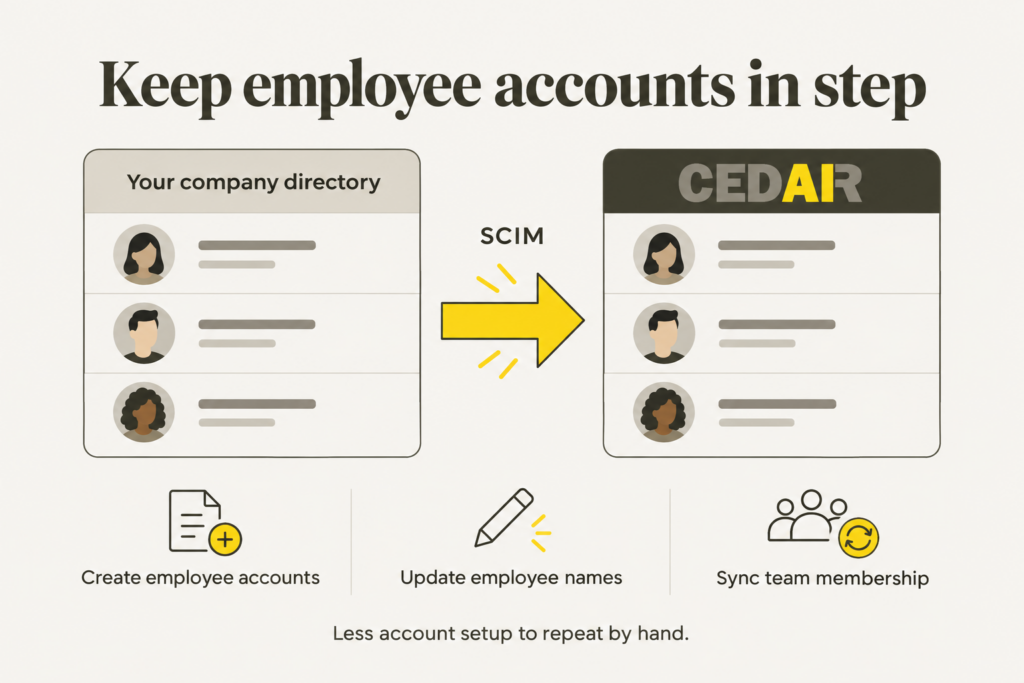
- Use SCIM to create employee accounts and update team membership from your company’s central account list.
- Move an existing team to single sign-on gradually, with Cedar AI sign-in still available while people make the switch.
Sign-in is part of the working day
A new dispatcher needs an account before their first shift. A terminal employee signs in from a mobile device. An accounting team hires three people, and IT has to set them up in every system they use.
Each of these gets harder when every application has its own sign-in process and its own employee list to maintain.
Companies approach this differently. A large shipper may manage employee accounts through Microsoft Entra ID. A terminal operator may use Okta or Google. A smaller railroad may manage accounts directly in each application.
Cedar AI supports those different starting points. We’ve also built for the work around sign-in: setting up employees, keeping account information current, and helping a team change sign-in methods while the operation keeps running.
Start with a Cedar AI account
Cedar AI has built-in sign-in. Your team can use an email address and password, and password recovery is available when someone forgets theirs.
That gives a company a quick way to get started. You can give each person an individual Cedar AI account without introducing another system to manage sign-in.
For a small operation, that matters. The person setting up a new employee may also handle billing, customer calls, and tomorrow’s switching plan. Account setup needs to fit into that day.
Use the work accounts your team already has
If your company uses Microsoft Entra ID (formerly Azure Active Directory), Okta, or Google, Cedar AI can connect to it through single sign-on, or SSO.
These services are known as identity providers. They manage how employees sign in to company applications. Your provider checks who you are, then lets you continue into Cedar AI with your work account. You can start from the Cedar AI sign-in page or from a Cedar AI link in your company’s app portal.
Your IT team can connect Microsoft Entra ID or Okta from Cedar AI’s settings, and Cedar AI enables Google sign-in for your company’s approved domains. The first time someone signs in this way, Cedar AI creates their account automatically, and an administrator still decides what they can access. Once a person moves to SSO, Cedar AI turns off their old password.
Your IT team keeps managing sign-in requirements in the place it already knows. Employees have one fewer password to remember. The SSO guide covers the available connections.
Add an extra check at sign-in
Multifactor authentication (MFA) requires another way to confirm your identity in addition to your password. A verification code sent to your phone is one example.
For Cedar AI accounts, administrators can turn on verification codes sent by text message for the people who need them. For employees using SSO, the company’s identity provider handles verification, including MFA when configured for that sign-in.
The same approach reaches people working in the field. On Cedar Mobile, for example, an employee’s email address directs them to Cedar AI sign-in or their company’s sign-in page. The mobile guide explains the steps.
Keep employee accounts current as your team changes
SSO gets people into Cedar AI, but someone on your staff still sets up accounts and updates teams. SCIM covers that ongoing work. It’s a standard connection to your company’s employee directory, the central list of employee accounts. Once configured, it creates Cedar AI accounts, updates names, and synchronizes team membership.
Say a shipper hires three accounting staff. IT assigns them to Cedar AI in the company directory, and the connection creates their accounts. When someone later joins or leaves a synced team, Cedar AI updates that team’s membership automatically. The SCIM guide covers Microsoft Entra ID setup.
Move to SSO while the operation keeps running
For a live operation, the changeover matters as much as the connection. Office staff and field employees work different shifts and use different devices. IT needs time to test the sign-in experience and help people through the change.
Cedar AI supports a gradual rollout. When Cedar AI turns it on for your company, people who haven’t moved to SSO yet keep using their Cedar AI password while the rest of the team signs in with SSO. If someone has a sign-in problem, an administrator can move them back to their Cedar AI account while the team investigates the issue, and everyone else keeps using SSO.
That gives the company room to test, communicate, and fix problems as the rollout progresses. The gradual rollout guide explains how it works.
Built to fit your organization
Signing in establishes who you are. Permissions determine what you can see and do once you arrive, and we’ll cover how Cedar AI manages those in a separate article.
The details are what make sign-in work for a real operation: a choice of sign-in methods, fewer employee updates to repeat by hand, and a changeover that works for teams across shifts. That’s how we build Cedar AI to fit the organization behind the operation.
One platform. End-to-end rail operations.
Want to talk through the right approach for your team? Schedule a demo